
How to add keywords to photos and videos in iOS 27, and rate them with stars
Photos on iPhone and iPad can now tag pictures and videos with your own keywords, search and filter by them, and rate them from one to five stars.
Photos in iOS 27 and iPadOS 27 lets you add your own keywords to pictures and videos, a feature that until this release was only in Photos on the Mac.
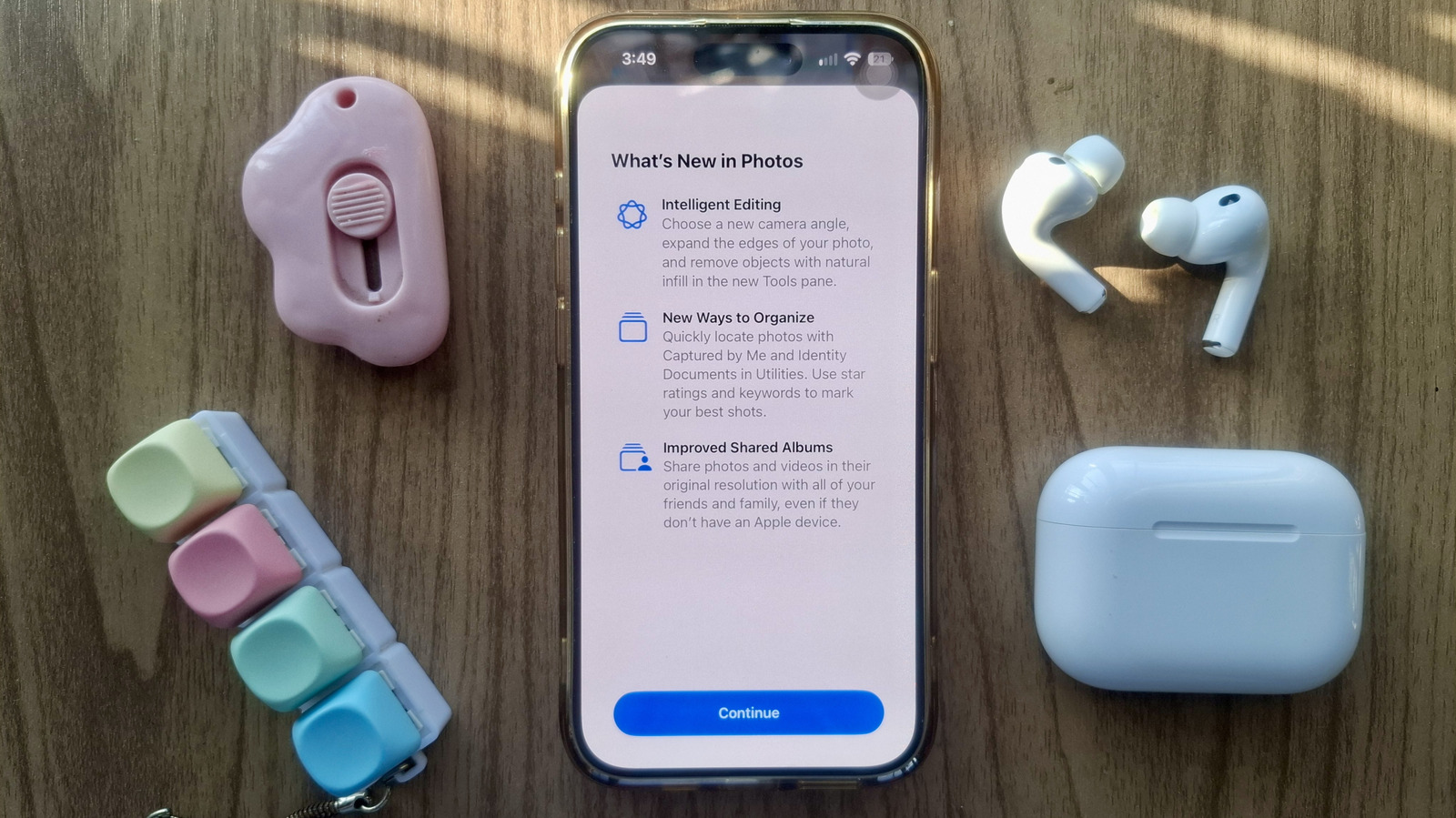
A keyword is a label you choose, and Apple describes keywords as tags that help you find photos and videos. iPhone Life, testing on an iPhone 15 Pro, says a keyword can be a word, a phrase, a number or a mix, such as nature hike or 1234. The same release brings star ratings from Photos on the Mac, according to Cult of Mac and BGR. Keywords sit alongside captions, which iOS already had, but as iDownloadBlog points out, you can filter the library by a keyword and not by a caption.
How do you add a keyword to a photo on iPhone?
- Open a photo, screenshot or video in Photos.
- Swipe up, or tap the info button.
- Tap Keywords, or Add Keywords, near the bottom.
- Type a keyword. To add another, tap the checkmark key on the keyboard to start a new line.
- Tap the checkmark at the top to save.
To change a keyword later, swipe up on the photo again and tap Edit in the keywords section. Photos suggests keywords you have used before as you type, according to Cult of Mac.
How do you find photos by keyword?
Tap the search button and type the keyword. iDownloadBlog says the suggestion for a keyword carries the letters Aa in front of it, and tapping that suggestion shows everything with that keyword. It found new keywords searchable straight away, and suggests leaving the iPhone on charge overnight if they are not, so the library can be indexed.
For keywords you use often, there is a filter. Open the Collections tab, tap your profile picture at the top right and choose Manage Keywords. There you can create, rename and delete keywords, and mark one as a favourite. Favourite keywords appear under the filter button, three lines at the top of the Library tab, alongside albums and collections. Choose All Items from the same menu to clear the filter.
How do star ratings work?
Ratings run from one to five stars and are off by default. Cult of Mac and BGR both say you turn on Show Ratings Controls in the Photos settings, which open from the Collections tab. BGR says the ratings can then be used to filter and organise the library.
What the guides do not say
None of the guides shows a way to add a keyword to many photos at once, which Photos on the Mac does with its Keyword Manager, according to Apple's Mac guide. Every method described works one photo at a time. None of them says whether keywords added on an iPhone appear on a Mac through iCloud Photos, or the other way round, and Apple's Mac guide does not cover syncing either.
Our take
Search in Photos is already good at finding what is in a picture: a dog, a receipt, a passport. It cannot know that forty photos are the ones you send to clients, or belong to one insurance claim. That is the gap a keyword fills, and iDownloadBlog's example, a business name on fifteen files that get sent again and again, is exactly the kind of use where it beats any amount of on-device recognition.
The favourite keyword filter is the part worth setting up. Search is a one-off, but a filter turns a keyword into something close to a smart album, without the Mac. This is the second iOS 27 change, after slideshows you can control and Shared Albums at full resolution, that moves Photos on the iPhone closer to the Mac app rather than adding something new.
The missing piece is tagging in bulk. Without it, keywords suit a small set of photos you care about, not a library of thousands taken before iOS 27. APPDOOK would also check syncing on one photo before relying on it: if keywords made on the Mac over the years do turn up on the iPhone, this feature is far more useful to people who already used them, and nobody has yet shown whether they do.
Star ratings are the quieter addition and may prove the more used. A rating takes one tap and needs no vocabulary to remember, which in our experience is why they are the usual way to sort a shoot into keepers and rejects. Keywords say what a photo is; ratings say whether it is worth keeping. Together they give the iPhone the two tools Mac users have relied on to tame a large library.
Sources
 How to add keywords to photos & videos on iPhone in iOS 27iDownloadBlog, Ankur Thakur, 2026-10-08
 Organize Your Photos with KeywordsiPhone Life, Rhett Intriago, 2026-09-09
 iOS 27 Photos app: new featuresCult of Mac, D. Griffin Jones, 2026-06-30
 5 Cool New Features To Try In The iOS 27 Photos AppBGR, Marinel Sigue, 2026-09-21
- Use keywords in Photos on MacApple Support, 2026-10-09
Reporting and images linked above belong to their respective publishers and are shown from their own servers. The analysis here is our own.