How to back up an iPhone to an external drive on a Mac, when Finder only offers the internal disk
Finder backs up an iPhone to the Mac's internal disk and offers no way to change it. A symbolic link moves the backup to an external drive. How, and the catches.
A Mac backs up a connected iPhone to its own internal disk, and Finder gives no setting to put that backup anywhere else.
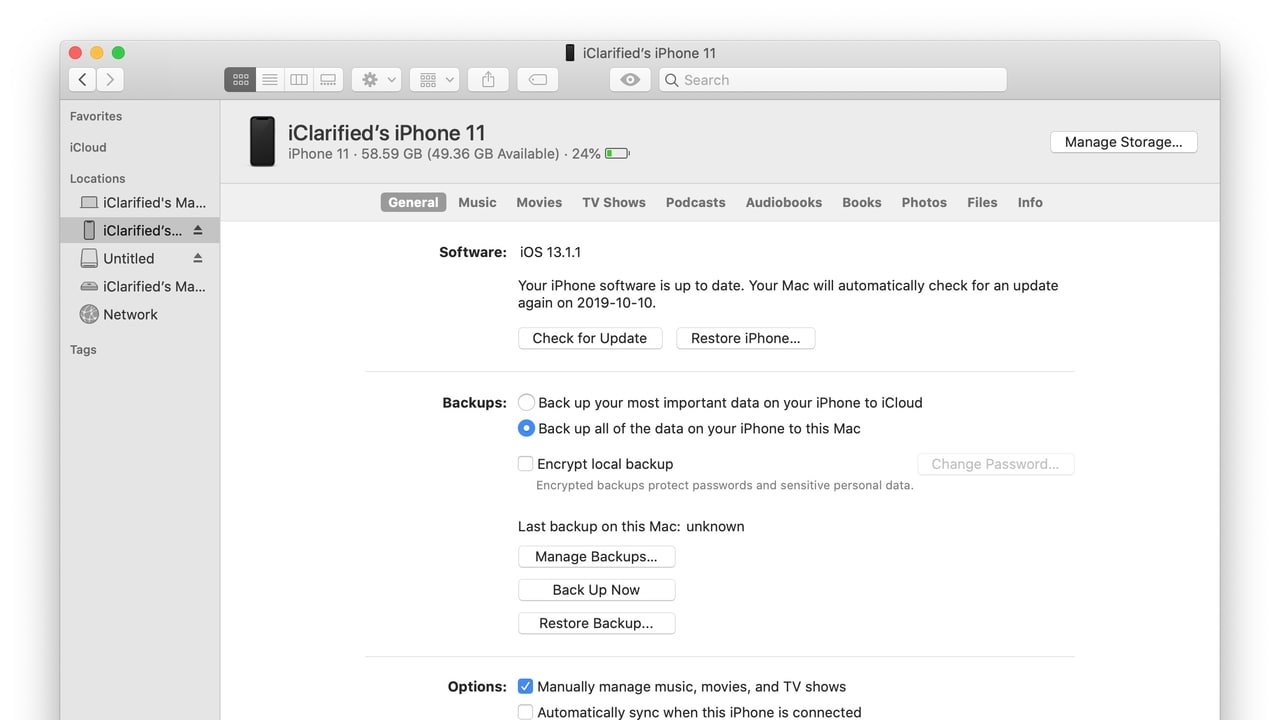
Apple's support page on locating backups gives the folder as Library, Application Support, MobileSync, Backup inside the user's home folder. In Finder, with the iPhone connected and selected, Manage Backups under the General tab lists every backup and lets you delete one, archive it so it is not overwritten, or show it in Finder. The page offers no way to choose a location. iClarified republished its long-standing workaround on 5 October, updated for macOS 27 and an iPhone 18 Pro Max: replace that folder with a symbolic link, a pointer that sends anything written there to a folder on an external drive.
Steps on macOS 27
- Connect the external drive and create a folder on it for backups. iClarified names it Backup.
- In Finder, choose Go, Go to Folder, and enter the MobileSync path in your Library folder. Rename the existing Backup folder there to Backup (Old). Do not delete it yet.
- Open System Settings, Privacy and Security, Full Disk Access, and turn on Terminal. Without it, iClarified says, the next step fails with Operation not permitted.
- In Terminal, make the link: ln -s, then the path to the folder on the drive, which starts /Volumes/ and the drive's name, then the MobileSync Backup path. Type a backslash before each space in a name.
- Select the iPhone in Finder, choose to back up all of its data to this Mac, and click Back Up Now.
iClarified notes that the drive has to be connected whenever the iPhone backs up, because the link points at it. Turning on Encrypt local backup before the first run includes saved passwords and Health and Activity data, and the backup cannot be restored without that password. To undo the change, delete the link and rename Backup (Old) back to Backup.
Is this safe to rely on?
It works because Finder writes to the path it always has and the file system does the redirecting. That is also its weakness. Apple does not document it, so a future macOS update could change how Finder treats that folder without warning, and a backup that fails tends to fail silently. After the first backup, check in Manage Backups that it appears with today's date, and look on the drive to confirm the files landed there and not on the internal disk.
Our take
The workaround exists because two numbers have drifted apart. Apple's specification page lists the iPhone 18 Pro with up to 2TB of storage, while plenty of Macs in daily use have far smaller internal disks, and a full local backup of a large phone can take a big share of one. The other route is iCloud, where, as we found, Apple's plans jump from 200GB straight to 2TB. A local backup on a cheap external drive is the answer for people in the gap, and it is odd that Apple still makes it a Terminal job.
The Full Disk Access step deserves more care than most guides give it. Terminal with that permission can read everything in your user account, Messages and Mail included, so switch it off again once the link is made; the link keeps working without it. Apple has said it will make Full Disk Access harder to grant because of AI agents, and a how-to that leaves it on permanently is the habit Apple is trying to break.
APPDOOK would also keep the old backup until the new one has completed and a restore is at least plausible, in the same spirit as our advice when macOS 27 ended Time Machine backups to Time Capsule: set up the new destination, prove it works, and only then remove the old one. We would use an encrypted backup, too. It is the only kind that keeps Health data and passwords, and on a drive that leaves the house, encryption is the difference between losing a disk and losing your data.
Sources
- Locate and manage backups of your iPhone, iPad, and iPod touchApple Support, 2026-01-14
 How To Back Up Your iPhone to an External Drive on MaciClarified, 2026-10-05
 iPhone 18 Pro and iPhone 18 Pro Max - Technical SpecificationsApple, 2026-10-05
Reporting and images linked above belong to their respective publishers and are shown from their own servers. The analysis here is our own.