
How to insert emoji on a Mac in macOS 27, including the hidden colon shortcut
Every way to type emoji in macOS 27, from Globe-E to Genmoji, plus the hidden Slack-style colon search that needs a Terminal command to switch on.
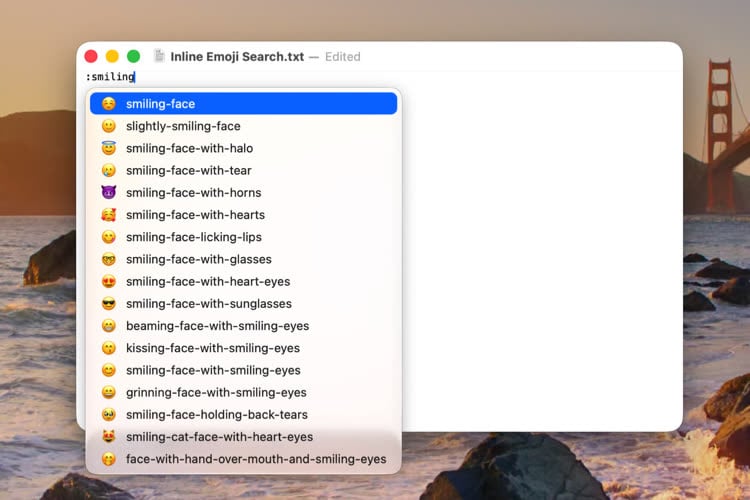
macOS 27 contains a hidden emoji search that works by typing a colon, but it is switched off and Apple does not document it.
iDownloadBlog described the shortcut on 12 October. It is not new: MacG reported the same switch in July, during the macOS 27 beta. Apple's own Mac User Guide for macOS 27 lists several supported ways to insert emoji, and none of them involves a colon. This guide covers both.
What are the supported ways to insert emoji?
Apple's Mac User Guide documents these:
- Fn or Globe and E: opens the Character Viewer, a panel of emoji and symbols you can search by word, such as laughing face.
- Edit menu: choose Emoji & Symbols in most apps for the same panel.
- Suggestions while typing: type a common word such as heart or thumbs up, press Fn or Globe and E, then press Return to swap the word for the suggested emoji.
- Skin tones: click and hold an emoji in the Character Viewer to see its variations.
- Globe key setting: in System Settings, Keyboard, set Press Globe key to Show Emoji & Symbols, so one key opens the panel.
- Input menu: under Keyboard, Text Input, click Edit and turn on Show Input menu in menu bar to open the viewer from the menu bar.
Genmoji, Apple's generated emoji, open from the same place: press Fn or Globe and E, or click the Emoji button in Mail or Messages, then click the Genmoji button at the top right of the Character Viewer. You describe what you want, or start from a person in Photos or another emoji. Apple says Genmoji needs Apple Intelligence turned on, works in 15 languages including English, French and German, and that usage limits may apply.
How do you turn on the colon shortcut?
The hidden version lets you type a colon followed by a name, such as :hea, and pick from a list of matching emoji, as Slack does. Both MacG and iDownloadBlog give the same Terminal command, which creates a FeatureFlags override for a flag called InlineEmojiSearch in the Stickers domain. It needs an administrator password and a restart. Deleting the override with sudo defaults delete and restarting turns it off again.
It works only in some apps. Both outlets say AppKit apps such as Notes, TextEdit and Calendar support it, and that apps whose writing areas are built on WebKit do not. MacG names Mail and Reminders; iDownloadBlog names Mail, Safari and Chrome, and says Messages works with a delay. iDownloadBlog credits the find to @pdfu on X, while MacG credits a developer posting on the MacRumors forums as mactracker.
Our take
The colon shortcut is the best of these to use and the worst to rely on. Typing a colon and three letters is faster than any panel, and anyone who uses Slack or Discord will reach for it without thinking. But it is a private feature flag, not a setting. MacG warned in July that the interface could be unstable and that Apple might not ship it, and it is still off in the released macOS 27, which is why the command is needed at all. A future update could change or remove it without notice.
APPDOOK's advice is to try it only if you are comfortable running sudo commands and know how to undo them, and to keep Fn or Globe and E as the habit. The word-then-Globe-E trick gets most of the way to the same result, it is documented, and it works everywhere the Character Viewer does.
For the handful of emoji you type every day, a text replacement is the supported shortcut that comes closest. Apple's guide puts it in System Settings, Keyboard, Text Replacements, where you add a phrase and what it becomes. Apple does not mention emoji there, but a replacement is just text, so a short code that turns into a favourite emoji is a reasonable stand-in until Apple decides whether the colon search is finished.
Sources
- Use emoji and symbols on MacApple Mac User Guide, 2026-10-13
- Create your own emoji with GenmojiApple Mac User Guide, 2026-10-13
- Replace text and punctuation in documents on MacApple Mac User Guide, 2026-10-13
 How to quickly insert emojis in macOS 27 with this colon trickiDownloadBlog, Ankur Thakur, 2026-10-12
 Apple teste une recherche d'emojis façon Slack dans macOS 27MacG, Félix Cattafesta, 2026-07-27
Reporting and images linked above belong to their respective publishers and are shown from their own servers. The analysis here is our own.