How to screen record on iPhone in iOS 27, with your voice, and where the recording goes
Screen recording on iPhone starts from Control Center, can capture your voice, and saves to Photos. Here are the steps, and the limits Apple does not stress.
An iPhone can record its own screen from Control Center, with or without sound from the microphone.
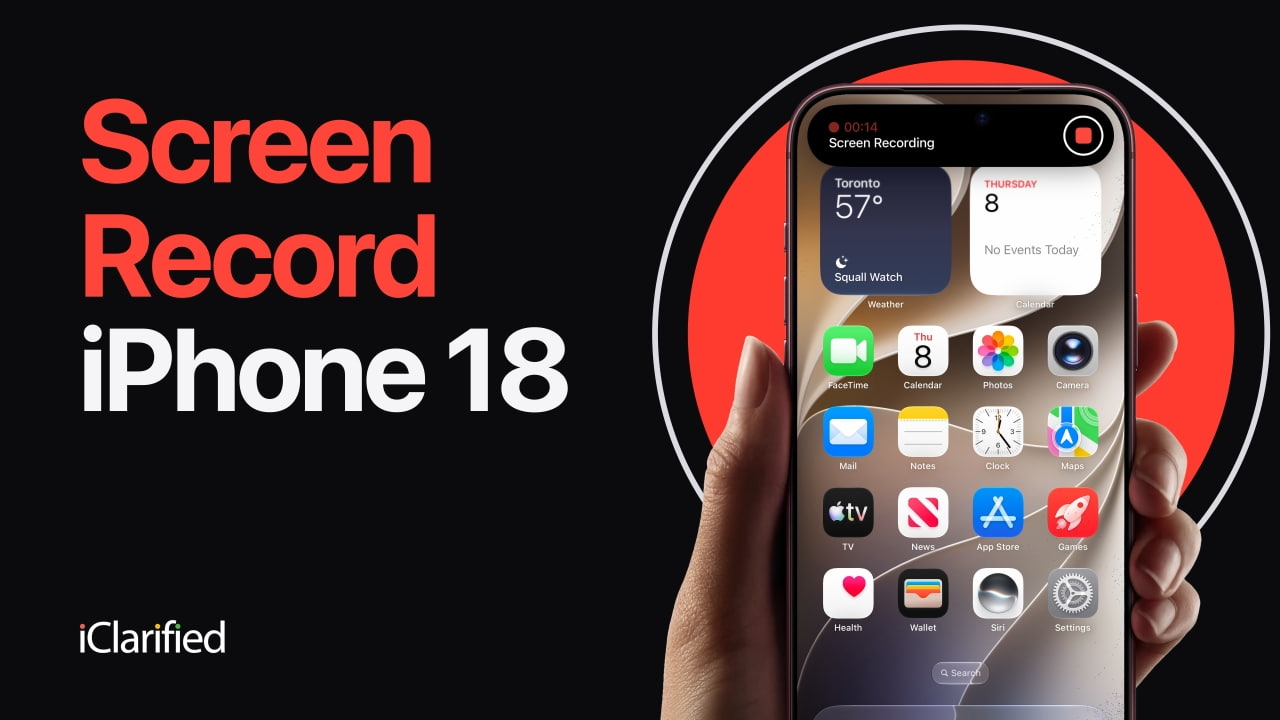
The steps below follow Apple's support article, dated 14 September, and iClarified's walkthrough on an iPhone 18 Pro Max running iOS 27. They apply to iPad as well. The recording is saved as a video in the Photos app.
How do you start a screen recording?
- Swipe down from the top-right corner of the screen to open Control Center.
- Tap the grey Record button.
- Wait for the three-second countdown, then close Control Center and use the iPhone as normal.
If there is no Record button, it has to be added to Control Center first. Apple's article links to its Control Center guide for that step. iClarified's walkthrough starts with the same check.
How do you record your voice as well?
Touch and hold the Record button instead of tapping it, tap the Microphone button so it turns on, then tap Record and wait for the countdown. iClarified's walkthrough makes the same point: turn the microphone on before the recording starts.
How do you stop, and where is the video?
Tap the red recording indicator at the top of the screen, in the Dynamic Island on recent iPhones, and tap Stop. Or open Control Center and tap the red Record button. The video appears as the newest item in the Library in Photos.
What can stop a recording?
- Locking the iPhone ends the recording, iClarified found, so keep the screen awake.
- There is no pause. To record in parts, stop and start a new recording.
- You cannot record while mirroring the screen to a TV or Mac, Apple says.
- Some apps do not allow audio or video to be recorded, Apple says. In iClarified's test, Apple Music played but the recording was silent.
Our take
Screen recording is one of the most useful tools on the iPhone that most people only find when they need it: to show a relative where a setting lives, to send a developer a bug that only happens in motion, or to keep a record of a booking flow that went wrong. Knowing the long press for the microphone is the difference between a clip someone has to decode and one that explains itself.
The limits are worth knowing before you start, not after. A recording that dies when the screen locks will catch out anyone recording something slow, and the missing pause turns a long demonstration into several clips. The silent Apple Music recording is deliberate rather than a fault: Apple lets apps refuse to be recorded, which protects music and video rights holders and also means a recording of one of those apps may be missing exactly what you wanted to show.
APPDOOK's advice is to trim before you share. Recordings start with Control Center on screen and end with you reaching for the stop button, and the trim handles under Edit in Photos remove both in a few seconds. It is also worth checking notifications before you press Record, because anything that arrives during the recording is in the video.
Sources
- Record the screen on your iPhone, iPad, or iPod touchApple Support, 2026-09-14
 How To Screen Record on iPhoneiClarified, 2026-10-11
Reporting and images linked above belong to their respective publishers and are shown from their own servers. The analysis here is our own.