
How to turn off or force restart an iPhone 18 on iOS 27, and which one a frozen iPhone needs
The button sequences for shutting down and force restarting an iPhone on iOS 27, which to use when, and the Emergency SOS countdown that catches people out.
An iPhone can be shut down in four ways on iOS 27, and force restarted with one three-step button sequence when the screen stops responding.
Apple's iPhone User Guide for iOS 27 sets out both procedures, and iClarified republished its own guides to them on 7 October, saying it had tested each on an iPhone 18 Pro Max running iOS 27. The two agree on every step. The sequences below apply to every iPhone with Face ID, which covers the whole iPhone 18 range, and to the iPhone SE models with a Home button where noted.
How do you turn off an iPhone 18?
Apple lists three ways in its guide, and iClarified adds a fourth:
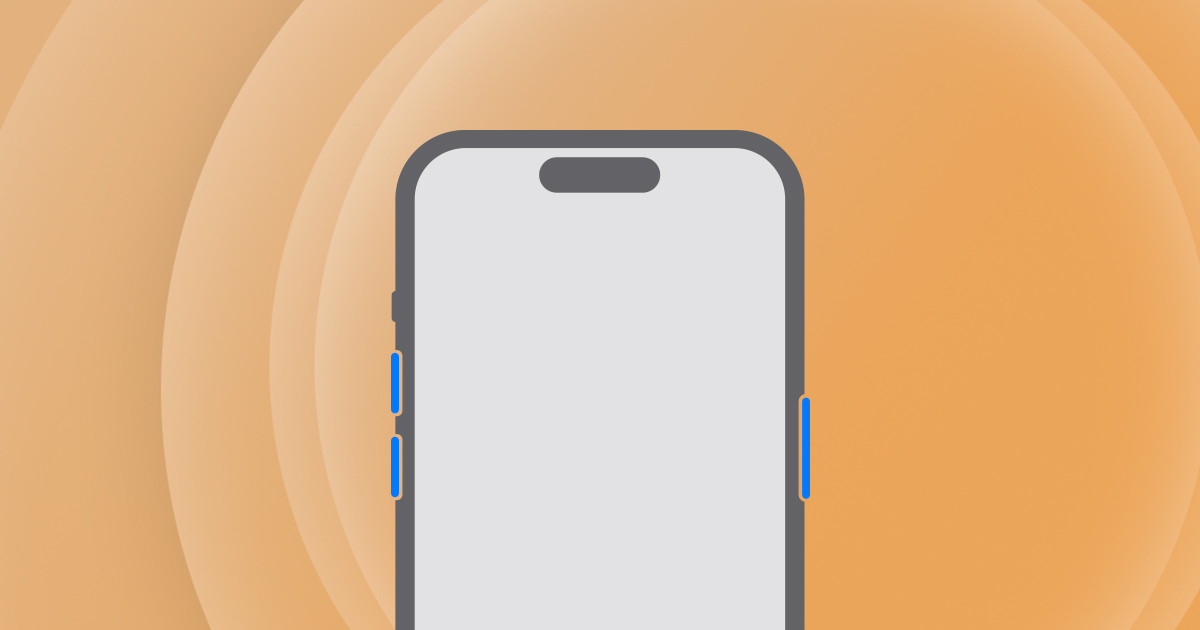
- Buttons: press and hold the side button and either volume button until the sliders appear, then drag Power Off
- Control Center: swipe down from the top right, touch and hold the power button in the corner, then drag the slider
- Settings: go to General, scroll to the bottom, tap Shut Down and drag the slider
- Siri: iClarified says asking Siri to turn off your iPhone brings up the same confirmation
Holding the side button on its own brings up Siri rather than the sliders, iClarified notes, and the phone can take up to 30 seconds to switch off. On an iPhone with a Home button, Apple says to hold the side button alone; on the first iPhone SE and the iPhone 5s or earlier, iClarified says it is the top button. To turn any of them back on, hold the side button until the Apple logo appears.
How do you force restart an iPhone that has frozen?
For iPhone 8 and later, including the second and third generation iPhone SE, Apple's sequence is:
- Press and quickly release volume up
- Press and quickly release volume down
- Press and hold the side button, and keep holding until the Apple logo appears
The power off slider appears part of the way through. iClarified's instruction is to ignore it and keep holding, and Apple's support article 116940 says the logo can take longer than 10 seconds to arrive. If the presses are too slow the phone does not register the sequence, so start again faster. On iPhone 7 and 7 Plus it is the side and volume down buttons held together, and on iPhone 6s and earlier the Home button with the side or top button.
If the screen stays black, Apple's advice is to charge the phone for an hour and try again, or for 30 minutes if a low battery symbol appears. Beyond that, Apple says, it may need service.
The Emergency SOS countdown
The shut-down buttons are also the Emergency SOS gesture. Apple's guide says that holding the side and a volume button past the sliders starts a countdown, and when it ends the iPhone calls emergency services and then texts the owner's emergency contacts with their location. The setting is Call with Hold and Release, in Settings under Emergency SOS, and a separate option calls after five quick presses of the side button. In India the gesture is three presses. Apple's instruction for a call made by mistake is not to hang up, but to wait for a responder and explain.
Our take
The two procedures do different jobs, and Apple's own guide puts them in order: turn the phone off and on first, and force restart only if that fails or the screen will not respond. A shut-down is the phone closing itself down. A force restart is for when it cannot. Neither Apple page warns of lost data, and neither is a reset. Erasing and restoring an iPhone is a separate procedure, recovery mode, which Apple documents elsewhere and which does wipe the phone. Someone who has frozen their iPhone does not need to fear the force restart.
Frozen phones are not only a problem for old hardware. Last month a failed Face ID scan was freezing and rebooting some iPhone 18 Pro units, and for anyone caught by it before the fix, the three-press sequence was the way back to a working screen.
The SOS overlap is the part we would want every new owner to know. The gesture that shuts the phone down is the same one that calls for help, separated only by how long the buttons are held. That is a sensible design for an emergency and an easy one to trigger by accident, which is why APPDOOK's advice is to use Control Center or Settings when there is no hurry, and to leave Call with Hold and Release switched on. A false call is an awkward minute; a disabled emergency gesture could matter far more.
There is one more reason to know how to switch an iPhone off. Apple's Face ID page says the passcode is always required after the phone has been turned on or restarted, so a restart is the quickest way to make a face useless to anyone holding the phone. That is the weakness behind the Miami Beach taxi thefts, where police say thieves unlocked passengers' iPhones with their own faces. It is also why Apple's Inactivity Reboot restarts an iPhone left locked for 72 hours, and why forensic companies work so hard to stop it. Pressing two buttons does by hand what Apple's own security timer does automatically.
Sources
- Turn iPhone on or offApple Support, 2026-10-07
- Force restart iPhoneApple Support, 2026-10-07
 If your iPhone won't turn on or is frozenApple Support, 2026-10-07
- Use SOS to contact emergency services on your iPhoneApple Support, 2026-10-07
- About Face ID advanced technologyApple Support, 2026-10-07
 How To Turn Off iPhoneiClarified, 2026-10-07
 How To Force Restart iPhoneiClarified, 2026-10-07
Reporting and images linked above belong to their respective publishers and are shown from their own servers. The analysis here is our own.