iOS 27 Lock Screen: extend a wallpaper, generate one, move the clock up, or swipe away Now Playing
iOS 27 adds four Lock Screen options: extending a photo to fit, generating a wallpaper, a compact clock, and dismissing Now Playing. Two need Apple Intelligence.
iOS 27 adds four ways to change the iPhone Lock Screen, which 9to5Mac gathered in a guide on 2 October.
Two of them rely on Apple Intelligence, which Apple's guide limits to the iPhone 15 Pro and Pro Max and every iPhone 16 or later, and which is not offered in mainland China. The other two work on any iPhone running iOS 27. Apple's own Lock Screen guide pages do not yet describe any of the four, so the steps below come from outlets that tested them through the beta and the release.
The four changes, and how to use them
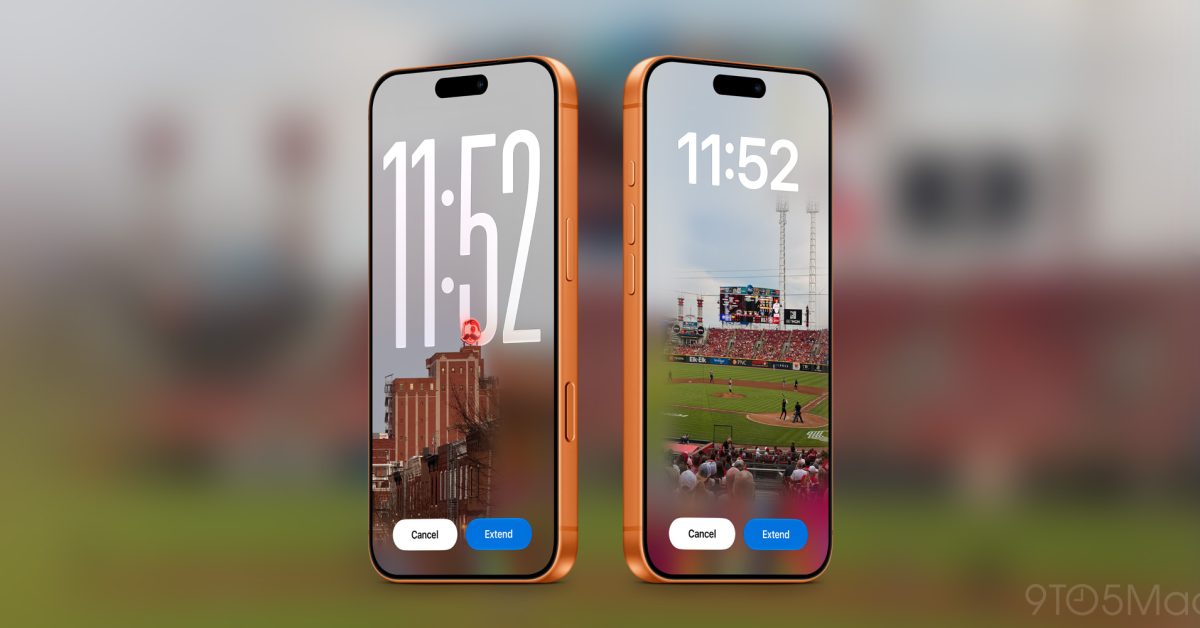
- Extend a wallpaper. When a photo does not fill the screen, iOS suggests extending it with the Extend tool from Photos. Tom's Guide gives the path as Settings, Wallpaper, Add New Wallpaper, choose a photo, the More button, then Extend Wallpaper. Needs Apple Intelligence.
- Generate a wallpaper. An Image Playground option in the wallpaper picker creates one from a description or a preset style. Needs Apple Intelligence, and counts against its usage limits.
- Move the clock up. The time can sit compactly in the top row beside widgets, set per wallpaper. iGeeksBlog reaches it by holding the Lock Screen, tapping Customize and then the clock; Tom's Guide describes a route through Settings. The Liquid Glass clock slider is not available in compact mode.
- Swipe away Now Playing. Swipe left on the playback controls and tap Clear. Music keeps playing, the Dynamic Island indicator goes too, and the controls return if you pause and resume.
How do you turn off Always On Display?
iClarified republished its how-to on 3 October, and it is a common Lock Screen question. Apple's iOS 27 guide gives the path as Settings, Display and Brightness, then Always On Display. Apple says it is on by default, and offers two switches within it: Show Wallpaper and Show Notifications. The screen already goes dark by itself when the phone is face down, in a pocket, in Low Power Mode, during Sleep Focus, or away from a paired Apple Watch.
Apple lists the models that have it: iPhone 14 Pro and Pro Max, 15 Pro and Pro Max, 16 Pro and Pro Max, iPhone 17, 17 Pro and Pro Max, iPhone Air, and iPhone 18 Pro and Pro Max. The non-Pro iPhone 14, 15 and 16, and the 16e and 17e, do not have it.
Our take
Of the four, the least showy is the most useful. Being able to dismiss Now Playing fixes a years-old irritation in which a paused podcast parked a large player on the Lock Screen for hours. The compact clock does the same for anyone whose photo had a face behind the time.
The two Apple Intelligence options are a reminder of where Apple puts new things. Extend and Image Playground sit behind both a device line and daily Apple Intelligence limits Apple has mostly not published, and on an older iPhone they simply do not appear. APPDOOK's view is that Apple should document all four in its own Lock Screen guide: when two outlets give different routes to the same clock setting, the people who lose out are the ones who do not read either.
Sources
 iOS 27 adds four new ways to customize your iPhone's Lock Screen9to5Mac, Chance Miller, 2026-10-02
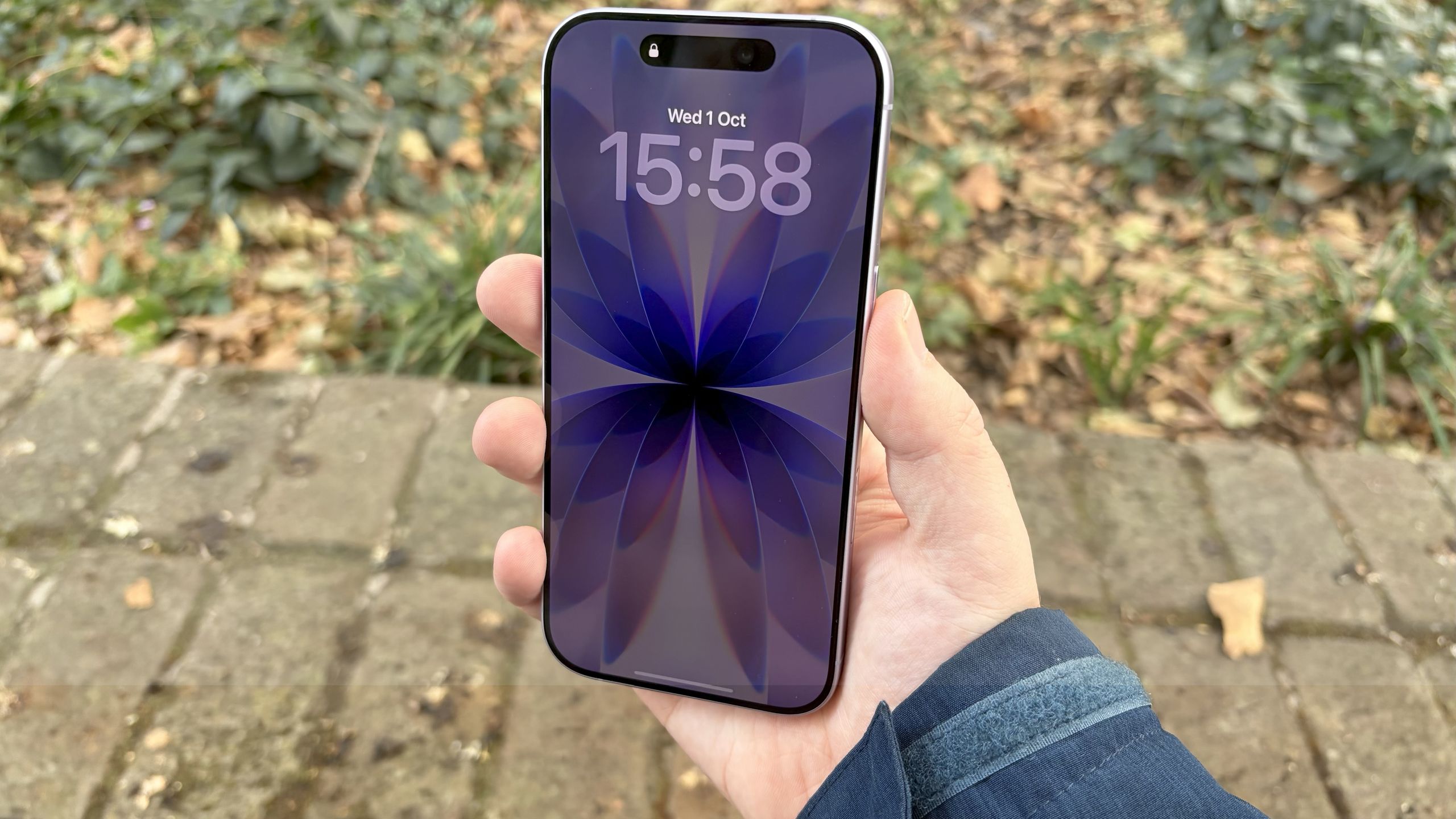 iOS 27 finally gives you total control over your iPhone Lock ScreenTom's Guide, Kaycee Hill, 2026-08-09
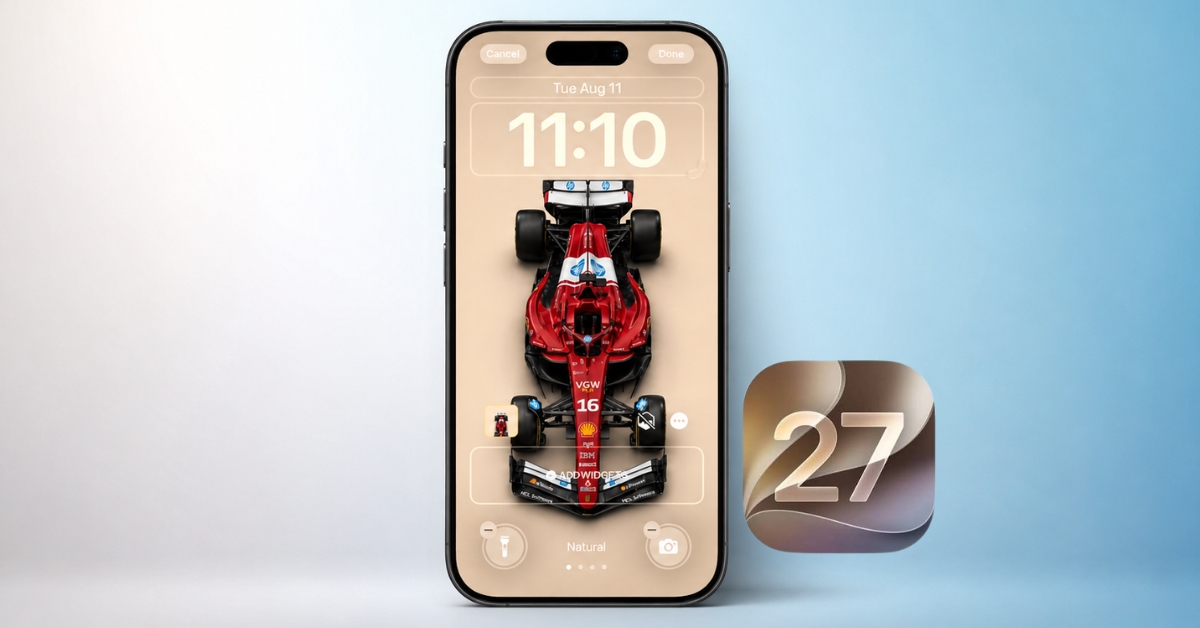 iOS 27 Lock Screen featuresiGeeksBlog, Ravi Teja KNTS, 2026-08-11
- Keep the iPhone display on longerApple Support, 2026-09-14
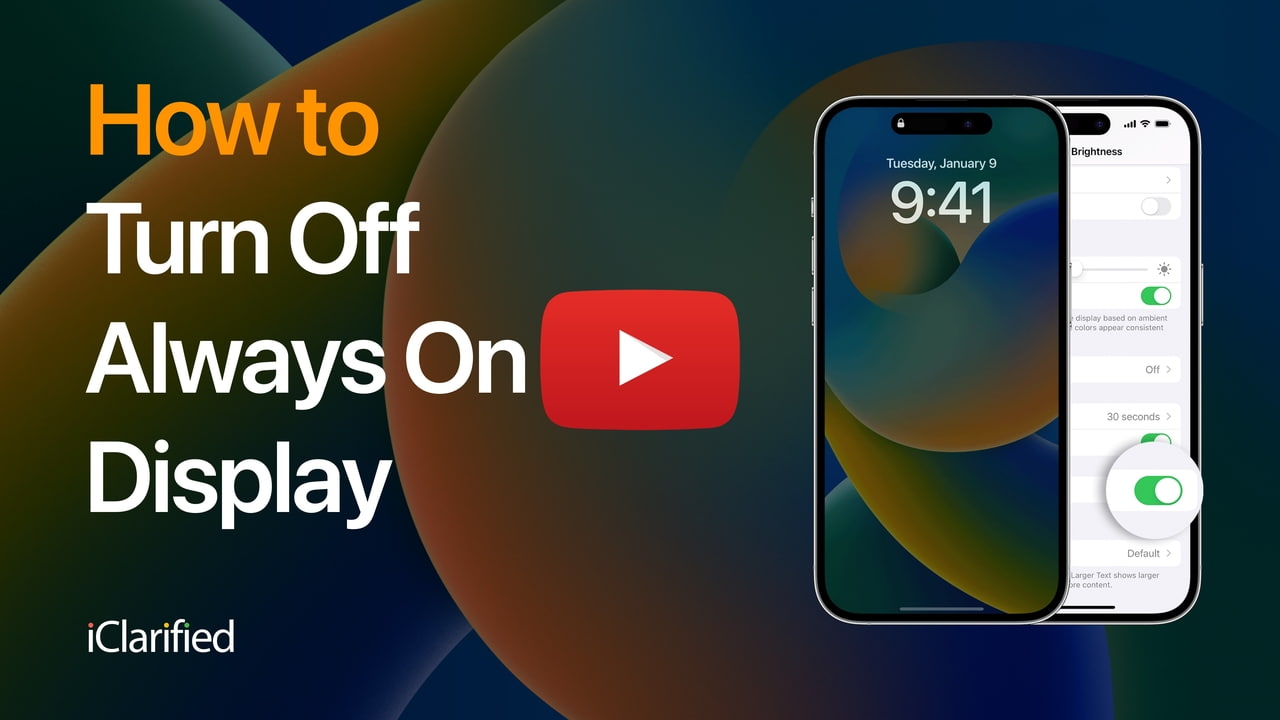 How To Turn Off Always On Display on iPhoneiClarified, Shalom Levytam, 2026-10-03
Reporting and images linked above belong to their respective publishers and are shown from their own servers. The analysis here is our own.