How to ask Apple to blur your house in Apple Maps Look Around
Apple will blur your home in Apple Maps Look Around if you ask. Here is how to request it, what to send, and what a blur does not hide.
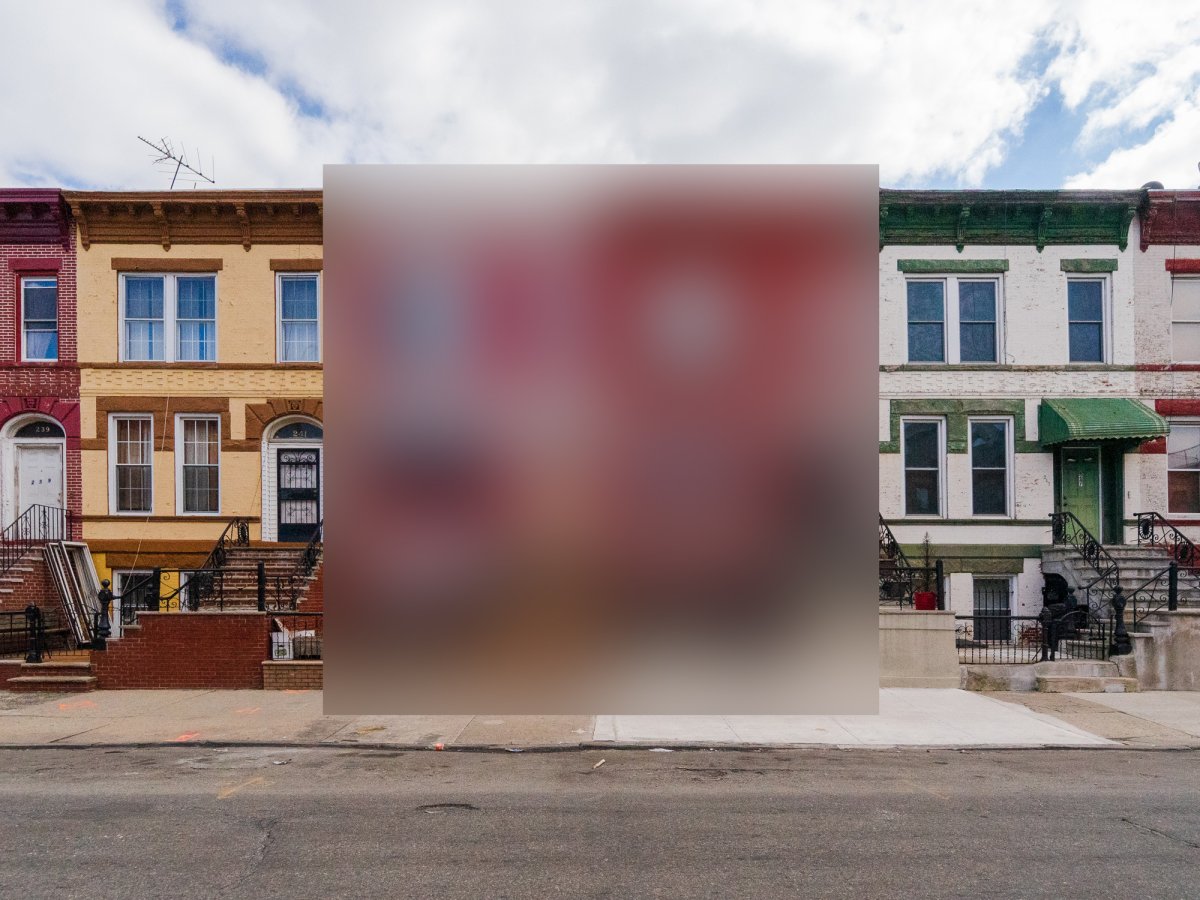
Apple will blur a home in the street-level Look Around imagery in Apple Maps if the person living there asks it to.
The option is not new, but it is little known, and AppleInsider set out the steps again on 15 October. Apple's own image collection page and its Maps privacy document both describe it. Apple already blurs faces and number plates automatically before any Look Around image is published. Houses are not blurred by default: Apple's documents offer a house blur only on request, alongside requests to blur a face or a plate the automatic pass missed.
How do you ask Apple to blur your house?
There are two routes, and Apple names both.
- Check first. Search for your address in Maps on iPhone, iPad or Mac, and tap the Look Around preview, the small image with binoculars. If there is no preview, Apple has no published street imagery of your home and there is nothing to blur yet.
- Email Apple. Apple's image collection page gives MapsImageCollection@apple.com for any request that a face, plate or your own house be blurred. Apple does not publish a format, so send your full address and a screenshot from Look Around showing which building is yours and roughly what should be covered.
- Or report it in Maps. Apple's privacy document says concerns about published imagery can go through the Report an Issue feature in the Maps app or on maps.apple.com. Say plainly that you are asking for your home to be blurred, give the address, and attach the same screenshot if the form allows it.
Older guides, including Popular Science in 2022, said email was the only way. Apple's current document and AppleInsider both say Maps itself now takes these reports as well. Where the two differ in practice, the email address is the one Apple ties to house blurs by name.
What a blur does not hide
AppleInsider is careful about the limits, and they are worth repeating.
- Your address stays on the map. A blur covers the building in street imagery, nothing else.
- Satellite and 3D views are separate. AppleInsider warns not to assume a Look Around request covers them.
- Other services are untouched. Google Street View has its own request, made from Street View itself with Report a problem, and Popular Science warns that Google's blurs may not be reversible.
- Unblurred originals still exist for a while. Apple's privacy document says collected imagery is kept unblurred for 12 months from collection, and is not shared with third parties.
None of the sources say how long Apple takes, whether it asks for proof that you live there, or whether a blur can be undone. Apple does say it revisits locations, so a new survey of your street may mean checking again.
Our take
For most people this is a preference, not a safety measure. A house front is visible to anyone who walks past, and blurring it in one app changes little. The case is different for someone dealing with stalking or harassment, which AppleInsider names directly. A clear image of the entrance, the windows and the driveway lets someone study a home without ever going near it, and that is exactly the kind of quiet reconnaissance a blur makes harder.
That reader should treat the blur as one step among several. Apple's own tools for it are scattered: Find My in iOS 27 can now stop sharing your location with one person without telling them, and the outcry over an AirTag accessory that silenced the tracker's speaker showed how the tracking side of the problem keeps coming back. A house blur sits in a support PDF and an email address, not in Settings.
That is the gap APPDOOK would point to. Faces and plates are handled by default; a home is handled only if the owner knows to ask, and the request is written by hand to an inbox with no stated response time and no confirmation step anyone has documented. Google at least gives a box to draw and a button to press. Apple has the better default and the worse request flow, and a privacy option that only works for people who read support documents is not doing much of its job.
Our practical advice is simple. If Look Around shows your home and you would rather it did not, send the email with a screenshot today, keep a copy, and check the imagery again in a few weeks and after any new Apple Maps survey of your area. Then make the same request to Google, because a blur on one map does nothing on the other.
Sources
- How to stop strangers from getting a clear look at your house in Apple MapsAppleInsider, Andrew Orr, 2026-10-15
- Apple Maps Image Collection: privacyApple, 2026-03-10
- Apple Maps Image CollectionApple, 2026-10-15
 How to hide your house on every map appPopular Science, David Nield, 2022-05-18
 How to get your house blurred in Apple MapsMacworld, Glenn Fleishman, 2021-08-26
Reporting and images linked above belong to their respective publishers and are shown from their own servers. The analysis here is our own.
How we report: editorial policy. Spotted an error? Report a correction.
Newsletter
Apple news, in your inbox
Get APPDOOK's Apple news by email, checked against the source like everything here.
Follow APPDOOK
New Apple stories every day, checked against Apple’s own sources.