How to manage notifications on iPhone in iOS 27: previews, summaries, Focus and the new top-left swipe
Where every notification control lives in iOS 27: the new top-left swipe, Display As, previews, per-app alerts, Scheduled Summary, Apple Intelligence and Focus.
iOS 27 keeps nearly all of the notification settings iPhone owners already know, but moves the gesture that opens Notification Center and adds Apple Intelligence controls on newer models.
Almost everything lives under Settings, Notifications. Apple's support page on using notifications, updated on 17 September 2026, and its iOS 27 iPhone User Guide set out the controls. This guide goes through them in the order most people need them, says which iPhones get each one, and notes where Apple's own pages do not agree.
How do you open Notification Center in iOS 27?
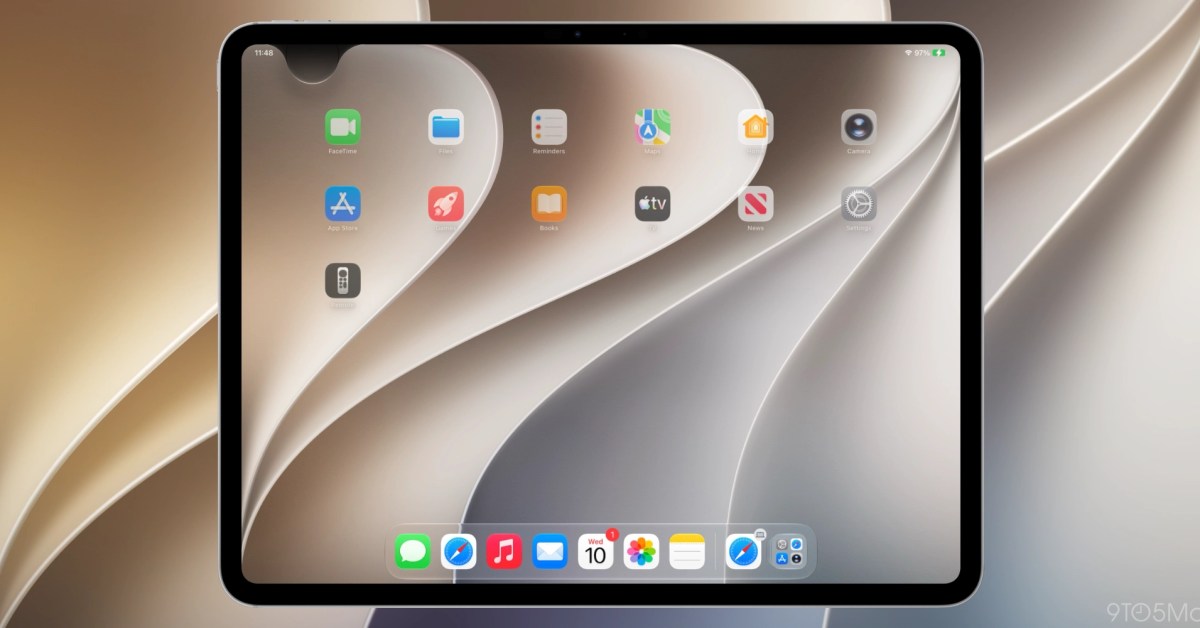
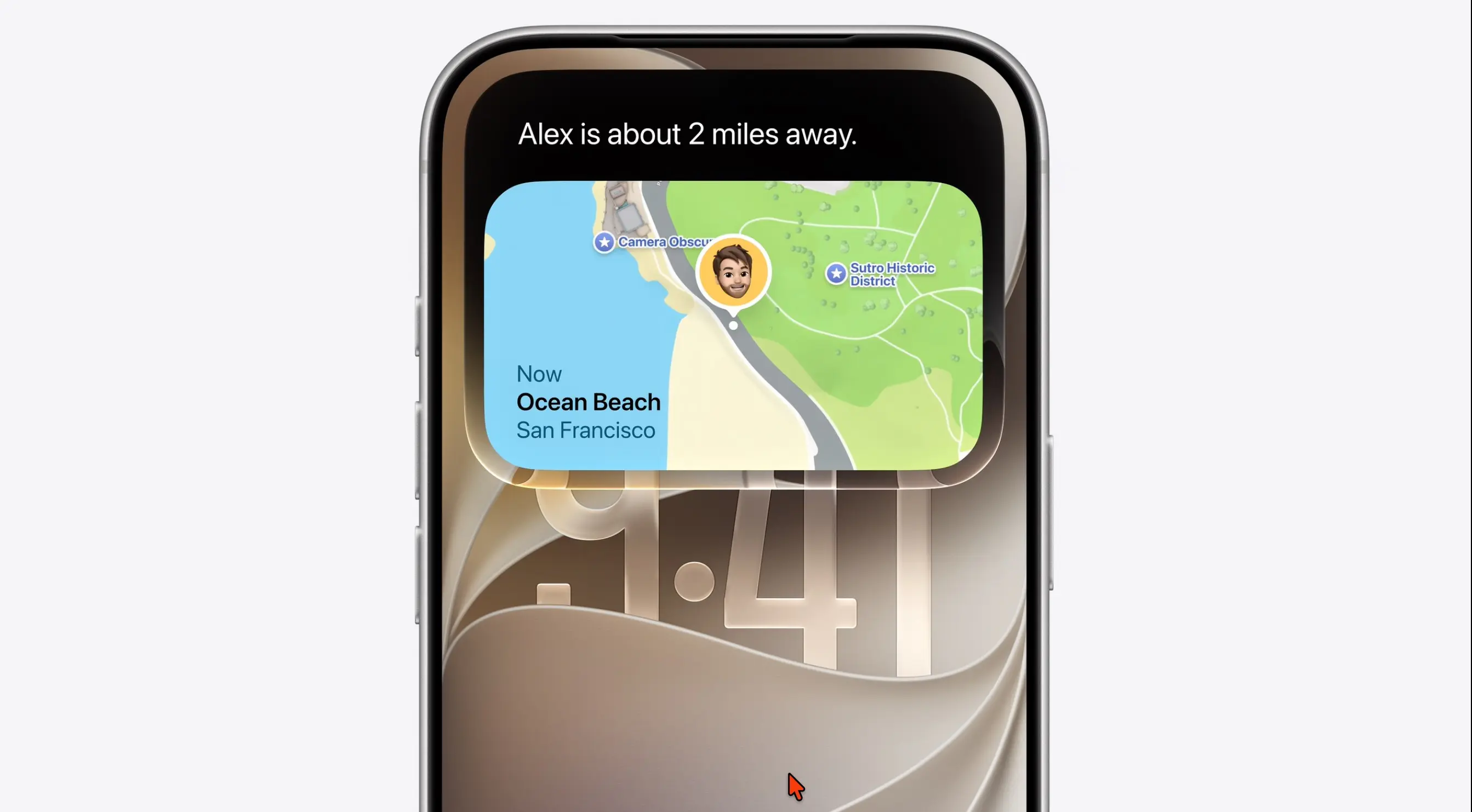
From the Lock Screen, swipe up from the middle of the screen. From any other screen, Apple's page now says to swipe down from the top left. Incoming banners also slide in from that side.
That instruction is not quite the whole story. 9to5Mac and Cult of Mac both report that the move to the top left happens when Siri AI is turned on, because a swipe down from the top centre then opens Siri. With Siri AI off, they say, the centre swipe still opens Notification Center. If the top-left swipe is the one that works on your iPhone, Siri AI is on. We covered why Apple gave the top-centre swipe to Siri, and which devices it affects when the change shipped.
Apple's iOS 27 update notes list one fix here: iOS 27.0.1 stopped the touchscreen freezing when Notification Center and Control Center were opened at the same time. Anyone still on iOS 27.0 who has seen that should update.
Choose how notifications look on the Lock Screen
Go to Settings, Notifications, Display As, and pick one of three layouts:
- Count: only the number of waiting notifications, at the bottom of the screen. Tap it to see them.
- Stack: notifications piled at the bottom, newest on top.
- List: every notification shown in a list, the layout iPhones used before iOS 16.
Below that, Show Previews decides whether the text of a message appears before you unlock. Apple's page suggests Always if you want to read notifications without unlocking. When Unlocked hides the content until Face ID recognises you, which is the safer choice for a phone left on a desk.
Change the settings for one app
Scroll down Settings, Notifications to the list of apps under Notification Style and tap one. Apple's iOS 27 guide lists what can be changed there:
- Allow Notifications: off silences the app entirely.
- Time Sensitive Notifications, where the app supports them, which can break through a Focus or a summary.
- Alerts: whether the app appears on the Lock Screen, in Notification Center, as banners, or any mix of the three.
- Sounds and Badges, the red count on the app icon. Some apps, such as Messages, let you pick their own tone.
- Show Previews for that app alone, overriding the general setting.
- Notification Grouping: automatically, by app, or off.
There is a quicker route when one app is being noisy. On the Lock Screen or in Notification Center, swipe left on its notification and tap Options. Apple lists four choices: Mute for 1 Hour, Mute for Today, View Settings and Turn Off. Muting is temporary; Turn Off is the same as the Allow Notifications switch.
Critical Alerts are the exception to all of this. Apps that are allowed to send them, such as health and home safety apps, can sound even when the iPhone is muted or in a Focus. Apple's page says they are turned on per app.
Batch notifications with Scheduled Summary
Scheduled Summary, which needs no Apple Intelligence and works on any iPhone that runs iOS 27, holds notifications from chosen apps and delivers them together at set times. Turn it on in Settings, Notifications, Scheduled Summary, choose the times, then pick the apps to include. Each app's own page then shows Notification Delivery set to Immediate Delivery or Scheduled Summary. Time Sensitive notifications still arrive straight away.
Which iPhones get Apple Intelligence summaries and priority?
Two options need Apple Intelligence: the iPhone 15 Pro and Pro Max, and every iPhone 16 or later, with Siri and the device set to the same supported language. Apple's support page still labels both with the release that first carried them, iOS 18.1 and iOS 18.4, and both remain in iOS 27.
- Summarize Notifications condenses a pile of messages into one line. Turn it on or off in Settings, Notifications, Summarize Notifications, and choose apps there. Summaries appear in italics; tap one to read the originals. Apple warns that results may vary. On a UK English iPhone the label reads Summarise.
- Priority Notifications moves what Apple Intelligence judges important to the top of the stack. The switch is in Settings, Notifications. Apple's page calls the per-app control both Priority Notifications and Prioritize Notifications, so look for either.
Apple Intelligence also offers a Reduce Interruptions Focus, which Apple's iOS 27 guide pairs with summaries, letting through only what it reads as urgent. Some apps add their own layer. The Home app's Reduce Notifications switch merges a run of related accessory alerts into one, which Apple lists among iOS 27's headline features.
Use Focus to decide who gets through
A Focus is the blunter tool: it silences everything except the people and apps you name. Open Settings, Focus, choose one such as Work or Sleep, and set allowed people and apps. Apple's guide covers allowing or silencing notifications for each Focus. In iOS 27 a notification can also start a Shortcuts automation, matched on its title or body, which can be used to switch on a Focus when a particular alert arrives.
Our take
Seen as a piece of interface, iOS 27's notification settings are three generations of design laid on top of each other. Per-app alerts and badges date from the first iOS releases, Scheduled Summary and Focus from iOS 15, and Apple Intelligence summaries and priority from iOS 18. Each layer works, but none was redesigned to sit with the others, so a single noisy app can be governed by five separate switches across three screens.
The order matters more than any single setting. As we see it, the most useful first move is not in Settings at all: swipe left, tap Options, Mute for Today. It teaches you which apps actually bother you before you spend twenty minutes configuring the ones that do not. After a week of that, Scheduled Summary for the apps you muted most often does more for a cluttered Lock Screen than any amount of Apple Intelligence, and it works on every iPhone that runs iOS 27, not only the newest.
The gesture is where design and documentation part company. A support page telling everyone to swipe from the top left, when two outlets report that only Siri AI users need to, is the kind of small inconsistency that sends people hunting for a setting that does not exist. What Apple owes its users here, in APPDOOK's judgement, is one sentence explaining that Siri AI changes the gesture, and a switch to keep the old swipe for those who want it.
For app makers, the lesson is in the layering. Priority Notifications and summaries now decide what a user sees first, and a Focus can hide an app altogether. A notification that earns its place says something specific in its first line, because that line is what a summary keeps, and uses Time Sensitive only for what genuinely is. People who switch an app off from the swipe menu rarely go back to Settings to switch it on again.
Sources
- Use notifications on your iPhone or iPadApple Support, 2026-09-17
- Change notification settings on iPhoneApple Support, 2026-09-14
- Summarize notifications and reduce interruptions with Apple Intelligence on iPhoneApple Support, 2026-09-14
- About iOS 27 UpdatesApple Support, 2026-09-29
 iOS 27 breaks 15 years of muscle memory on iPhone and iPad9to5Mac, Zac Hall, 2026-10-02
 iOS 27 just broke your oldest iPhone habitCult of Mac, Anurag Chawake, 2026-07-02
Reporting and images linked above belong to their respective publishers and are shown from their own servers. The analysis here is our own.
How we report: editorial policy. Spotted an error? Report a correction.
Newsletter
Apple news, in your inbox
Get APPDOOK's Apple news by email, checked against the source like everything here.
Follow APPDOOK
New Apple stories every day, checked against Apple’s own sources.